
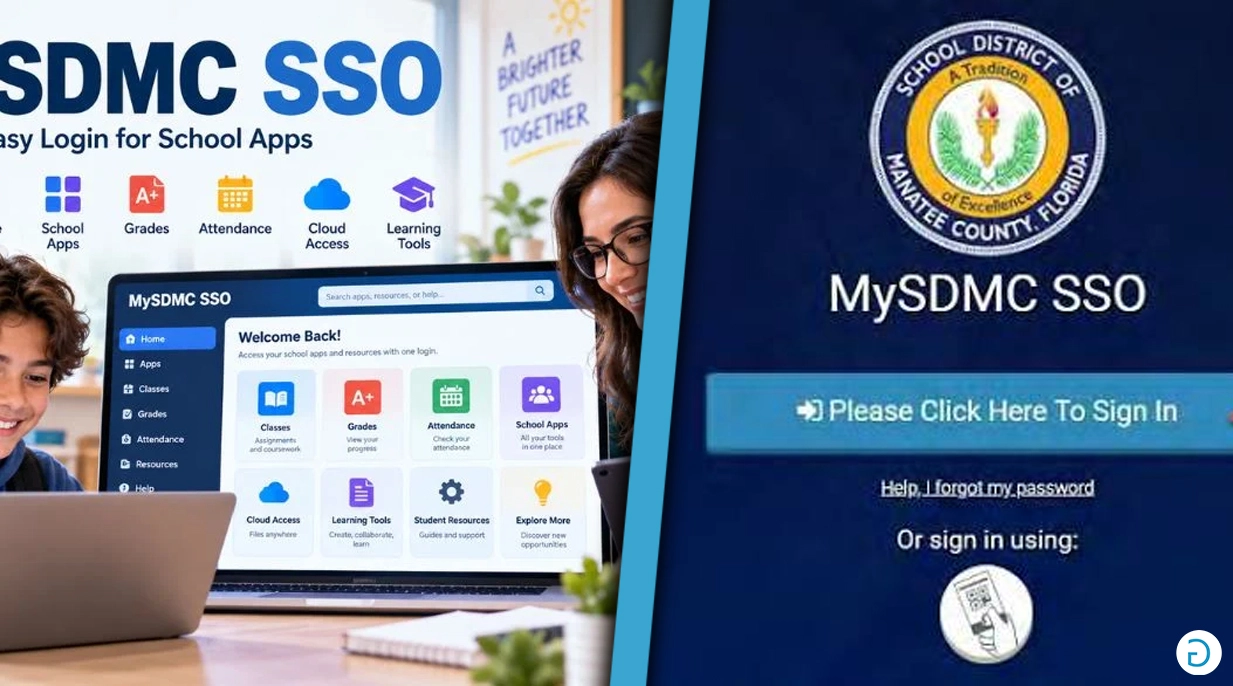
MySDMC SSO: Login Guide, Features & School Apps
MySDMC SSO is the official online login portal for the School District of Manatee County in Florida. Powered by ClassLink LaunchPad, it allows students, teachers, and school employees to access educational applications through one account. Users can open digital textbooks, classroom resources, and Microsoft Office tools without visiting multiple websites.
The portal works at school and from home, making learning resources easier to access. Here’s how to log in, use its features, recover your password, and solve common problems.
What Is MySDMC SSO?
MySDMC SSO is the Single Sign-On system used by the School District of Manatee County. It connects students and staff with approved educational applications through ClassLink, a platform designed to simplify school technology access.
Each user receives a personalized dashboard displaying applications assigned to their account. Students may see reading programs and digital textbooks, while teachers have access to instructional and administrative tools. Available resources depend on school assignments and account permissions.
How to Log In to MySDMC SSO
Students and staff can access the portal using their district-issued login credentials. The process is straightforward and works on most modern browsers.
Follow these steps:
- Open Chrome, Edge, Safari, or another current browser.
- Visit https://launchpad.classlink.com/manateeschools.
- Select the sign-in option.
- Enter your school username and password when prompted.
- Complete any additional verification requirements.
- Open your ClassLink dashboard.
- Select the application you want to use.
Some school-managed computers may recognize existing district accounts automatically. Students accessing the portal from home generally need their usernames and passwords.
Anyone having trouble signing in should contact their teacher or school technology support team.
Key Features of MySDMC SSO
MySDMC SSO brings several useful educational tools together through a single dashboard. Its main features include:
- Single Sign-On: Access multiple school applications through one account.
- Personal Dashboard: View learning tools assigned by the district.
- App Library: Find additional available educational resources.
- Application Search: Locate specific apps without browsing every icon.
- Password Recovery: Reset account credentials using supported recovery options.
- Home Access: Open school resources from personal devices.
- QuickCard Support: Use card-based login where enabled by the school.
ClassLink also offers dashboard customization and organizational features. However, available settings may differ depending on the user’s account and district configuration.
School Apps and Learning Tools
The School District of Manatee County provides digital applications that support classroom instruction, assignments, and independent study. Students can access many of these resources through their ClassLink dashboards.
| Application | Main Purpose |
|---|---|
| Microsoft 365 | Create documents and presentations |
| OneDrive | Store and access school files |
| Schoology | View lessons and assignments |
| FOCUS | Access academic records |
| Digital Textbooks | Read assigned learning materials |
| Reading Programs | Develop literacy skills |
Microsoft 365 allows students to work with Word, Excel, and PowerPoint. OneDrive makes it possible to save documents online and reopen them from another device.
Some applications may require additional authentication or setup. The tools displayed also depend on the student’s school, grade, and assigned classes.
How to Use the Dashboard
After successfully signing in, users arrive at their ClassLink LaunchPad dashboard. This page displays available applications as clickable icons, providing a convenient starting point for schoolwork.
Students can search for particular applications or explore the App Library. Depending on account settings, they may also organize applications into folders or adjust their dashboard layout.
If an expected application is missing, check the search feature before contacting a teacher. School administrators control access to assigned resources.
Benefits for Students and Teachers
One major benefit of MySDMC SSO is convenience. Students can access their learning resources without repeatedly searching for websites or managing separate login details.
The portal also supports learning outside the classroom. Students can open assigned applications at home, complete documents, and retrieve files stored in OneDrive.
Teachers benefit from quicker access to instructional materials and classroom applications. District employees can also use their accounts to reach authorized administrative resources.
Although the platform simplifies access, most online applications still require a stable internet connection.
MySDMC SSO vs. MySDMC Focus
MySDMC SSO and MySDMC Focus are connected to the same school district, but they serve different purposes.
MySDMC SSO provides centralized access to educational applications through ClassLink. Students and staff use it to open digital learning tools and other assigned resources.
MySDMC Focus is associated with the district’s student information system. It helps students and parents access grades, attendance, assignments, and school updates.
Parents typically use the separate FOCUS Parent Portal with their own accounts. The district also provides a MySDMC Focus mobile app for supported Android and Apple devices.
How to Reset Your Password
Forgetting your password can prevent access to school applications. ClassLink provides a recovery option for eligible accounts with the necessary settings enabled.
To recover your account:
- Visit the official MySDMC SSO login page.
- Select “Help, I forgot my password.”
- Enter your district username.
- Follow the recovery instructions.
- Set a new password if the system permits it.
- Return to the portal and sign in.
Some users may need previously configured recovery questions or other verification details. If the recovery process fails, contact your school office or technology support team.
Common Login Problems
Occasionally, students may experience login errors, missing applications, or dashboard loading problems. These issues can involve incorrect credentials, internet connectivity, or browser settings.
| Problem | Recommended Solution |
|---|---|
| Incorrect password | Check credentials or use password recovery |
| Login page not loading | Check your connection and refresh |
| Blank dashboard | Sign out and log in again |
| Missing application | Check the App Library |
| Application not opening | Try another browser |
| Expired session | Return to the login page |
| Locked account | Contact school support |
If only one application fails, the problem may involve that particular service rather than the entire portal. Report persistent issues to school staff.
Account Security Tips
MySDMC SSO is an official district service, but protecting account credentials remains important. Students and staff should access it through the district website or its authorized ClassLink login page.
Avoid sharing passwords, entering credentials on unfamiliar websites, or saving login information on public computers. Always sign out after using a shared device.
Students using school-issued QuickCards should also keep them private and report lost cards to their teachers.
Conclusion
MySDMC SSO makes school technology easier to access by bringing educational applications together through ClassLink LaunchPad. Students can open learning resources, manage documents, and continue assignments from home, while teachers benefit from organized access to classroom tools.
For secure and reliable access, use the official MySDMC SSO login portal, protect your account credentials, and contact your school when technical assistance is needed.
FAQs
What does MySDMC SSO stand for?
MySDMC SSO refers to the School District of Manatee County’s Single Sign-On system, which provides access to approved educational applications.
How do I log in to MySDMC SSO?
Visit launchpad.classlink.com/manateeschools and follow the sign-in instructions using your district-issued account.
Can students use MySDMC SSO at home?
Yes. Students can access assigned educational applications from home using an internet connection and valid school credentials.
Is MySDMC SSO free?
Yes. Eligible students, teachers, and district employees can access the school-provided portal without a separate subscription fee.
Can parents check grades through MySDMC SSO?
Parents should use the separate FOCUS Parent Portal or MySDMC Focus app to check grades, attendance, and student information.